Coming back from a shoot with thousands of raw images on your camera is all very well, but they need to be organised and rated. Will Cheung explains how Excire Foto 2027 can save time and stress
Developing a smooth and efficient workflow takes time but for peace of mind, the effort is worth it if you care about your images.
Typically, after a day’s shoot I download the results onto my working hard drive, putting them in a folder named with the date and shoot or location details.
Next, I make two more copies so in total I have three sets on three separate hard drives. It’s a belt and braces approach but I have learnt from bitter experience that paranoia is a healthy state of mind when it comes to backing up your pictures.
Lightroom blues – Excire to the rescue
Over the years, my workflow has been based on Adobe Lightroom Classic and it’s obviously very good software; Lightroom’s editing and masking skills have improved immeasurably.
On my system, however, viewing large or full-screen previews of high megapixel raws in Lightroom has been dogged by stuttering, lag and a general tardiness where previews can take an age to refresh and sharpen up, and it’s no joke when you’re dealing with thousands of frames.
It’s annoying because Lightroom is such a good editor, but that’s why I started using Excire Foto 2025 and now the new Excire Foto 2027 to rate and cull my work.
Importing into Excire takes time as images are initialised which means they are analysed by AI, keyworded and given an aesthetic score out of 100. I initialised my archive when I set up in Excire Foto 2025 and that took many hours, but I decided to start from scratch with Excire 2027 as part of a software review for AP.
After an organised model shoot I came back with 6178 50-megapixel images which were half JPEGs and half raws so there were 3089 individual photographs. I imported this lot into Excire and that took 21 minutes 37 seconds.
A status report provided by the software supplied that information. It was interesting to see that the aesthetic scores differed for the Raw and JPEG even though they were essentially same image with only the in-camera JPEG processing being the point of difference.
The score differences weren’t by much, sometimes by fractions with two to three points being the maximum.
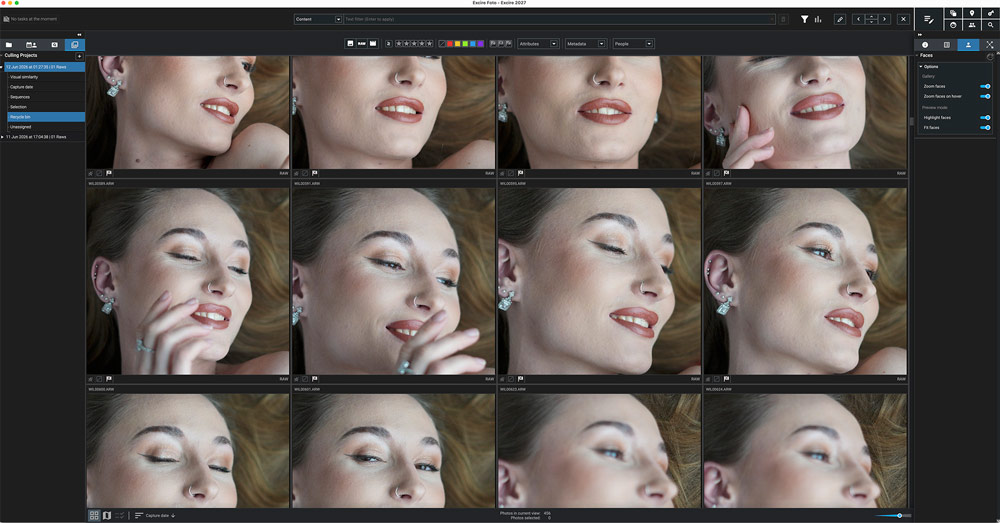
Trawling through thousands of images assessing and rating them takes a decent chunk of time even with Excire. But on the upside Excire produces crisp full-screen previews as quickly as I can rate my shots and hit the left and right arrow keys.
Speeding things up
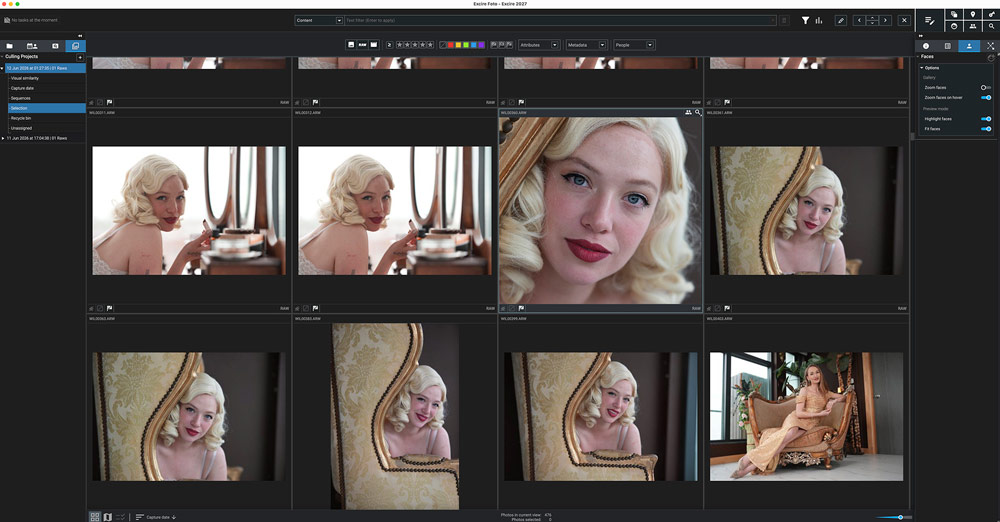
One way of accelerating workflow is using Excire’s AI culling skills. Selecting the appropriate folder and setting up a Culling Project is quick, and I ended up with a set of folders named Visual Similarity, Sequences, Selection and Recycle bin. The Status Report for this project said that the app’s Smart selection AI had rejected 468 images and flagged 466.
Checking through Excire’s chosen rejects, I can see it had done a capable job picking out poor exposures, out of focus shots but the biggest fault in rejected images was shots of the models with closed or half-closed eyes. Somehow, I had managed to take an uncommonly high number of them, and they deserved to be deleted.
Excire’s automated AI culling clearly did a competent job, but I wouldn’t trust any software to bin my photos so I checked through the Recycle bin. I found there were a number of profile pictures, some strongly backlit, that Excire had rejected but in these shots, I was trying something different, so I hit the ‘P’ key to change the flag status from a cross to a tick to keep them.
Right-clicking on the Recycle bin folder gives the option to empty the rejected images while doing the same on the Selection folder gives options to make a collection, add to a collection or export.
Having asked Excire to kick off my workflow by culling obvious failures disposed of around 300 shots, and next it was time to identify the five-star keepers.
Of course, I could skim through the Excire selected images in full-screen (hit F for full-screen, esc to return to normal view) as I had previously mentioned because Excire is so quick and it could easily keep pace with my working speed.
Also, adding stars and colours to the images is done with the same keys as those used for Lightroom, i.e. 1-5 for star ratings and 6-9 for colours.
Survey View is a big help
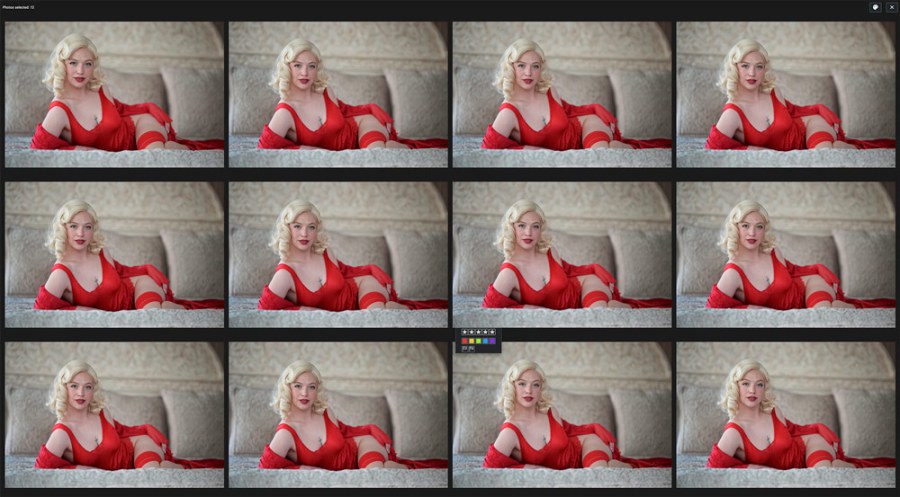
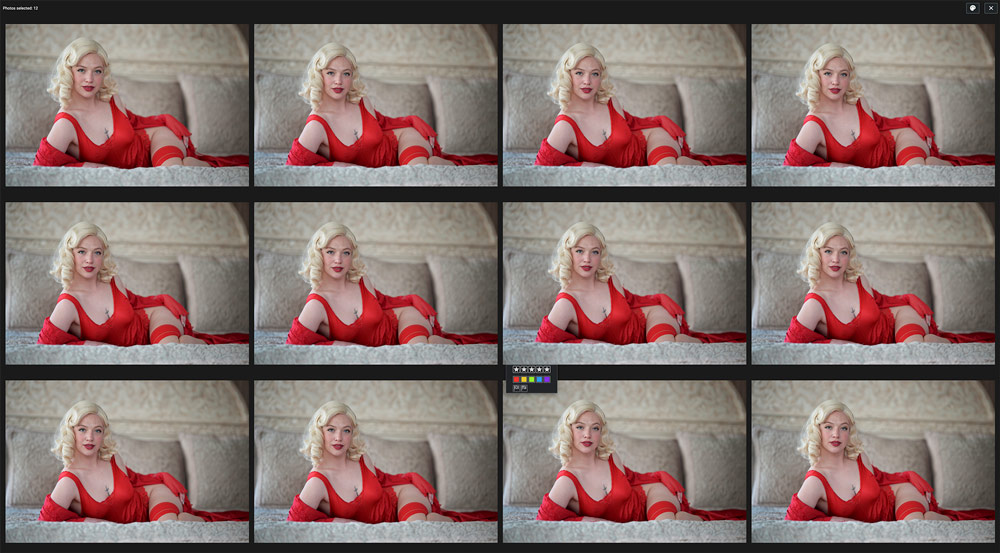
However, I decided to use the new Survey View in Excire Foto 2027 where it’s possible to select from one to hundreds of images. On my 32-inch screen 103 thumbnails were on show at one time with the rest waiting to join as images got deselected.
In Survey View the chosen images are laid out in a grid of thumbnails against a black background.
All you see is the photos: no file numbers, no distractions and as you filter through the images in Survey View the remaining images get larger and your ‘keepers’ can be picked with a flag, a star or a colour rating.
With my favourite shots rated all that remains in my workflow is to import the images into the Lightroom catalogue ready for editing. With images already in a catalogue the metadata can be saved in Excire and read in Lightroom, so all ratings are transferred over.
With workflow such an integral part of modern imaging bringing in Excite Foto 2027 has certainly been a great help, so now together with Lightroom Classic I have the best of both worlds.
More about Excire Foto 2027
The new Excire Foto 2027 app retains all the rating, culling and search skills of Foto 2025 plus it has gained several significant features.
- AI Text Recognition gives a new way of searching the image database and the software will automatically detect visible text in your images, and it does this quickly. It means if you’re looking for a place name, street, shop front or brand name, you can do it accurately and very quickly.
- Another major feature is Map View. Excire Foto 2027 automatically detects GPS data – whether embedded at the time or added post-shoot – in your images and videos and places where you shot the content on an interactive map.
- Click on an appropriate location and you immediately see all the images shot there. It’s a great tool for travel, street and landscape photographers.
- If you need to find images taken at a particular time frame, there’s a powerful timeline tool and it’s intuitive to use too. Just zoom into the timeline graph and the date you are looking for, and you see the images instantly and then you can rate, keyword and discard your work as normal.
Excire Foto 2027’s workflow is now even more efficient with, among other features, a redesigned search bar and Survey view, where you can assess images quickly in an uncluttered interface. Watch out for a full review soon.
Excire Foto 2027 is currently available for a limited-time launch discount. (Use code AMATEURPHOTO for an additional 15% off your lifetime license).
Further reading
Excire Foto 2025 & Excire Search 2026 review