Amateur Photographer verdict
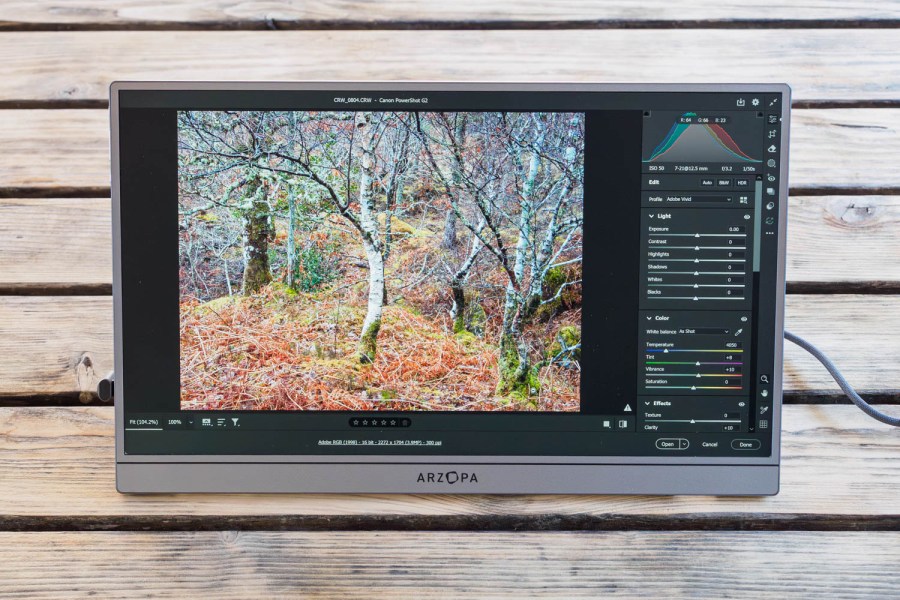
Photographers looking for a second screen for photo editing on the move will find the Arzopa Z3FC to be a good choice. Its QHD resolution, sRGB coverage and slim design are all very real attractions.- Super-slim, portable design
- Good detail and useful colour gamut
- Comprehensive kit with case and cables
- Attractive price
- Speakers aren’t great
- Case doesn’t have a separate cable pocket
The Arzopa Z3FC is a portable monitor with a 16.1in screen, that’s designed to be used with laptops, tablets, smartphones and gaming consoles. With a slimline, lightweight design, it’s easy to carry around. For photographers, it’s likely to be most useful as a secondary screen for editing photos and videos on a laptop.
Arzopa Z3FC at a glance:
- $199.99 / £159.99
- 16.1in screen size
- 2560 x 1440 QHD resolution
- 107% sRGB colour gamut
- 400nits brightness, 180Hz refresh
- 336 x 228 x 9.3mm, 780g
- arzopa.com
There are plenty of portable monitors around, though, so why this one in particular? Firstly, it offers a decent colour gamut, which Arzopa describes as 107% sRGB. In contrast, many cheap screens don’t even specify a gamut, which likely means poor colour rendition that’s unsuitable for photography work. Secondly, the Z3FC’s 2560 x 1440-pixel QHD resolution means it can display detail just that bit more finely than regular 1920 x 1080 screens.
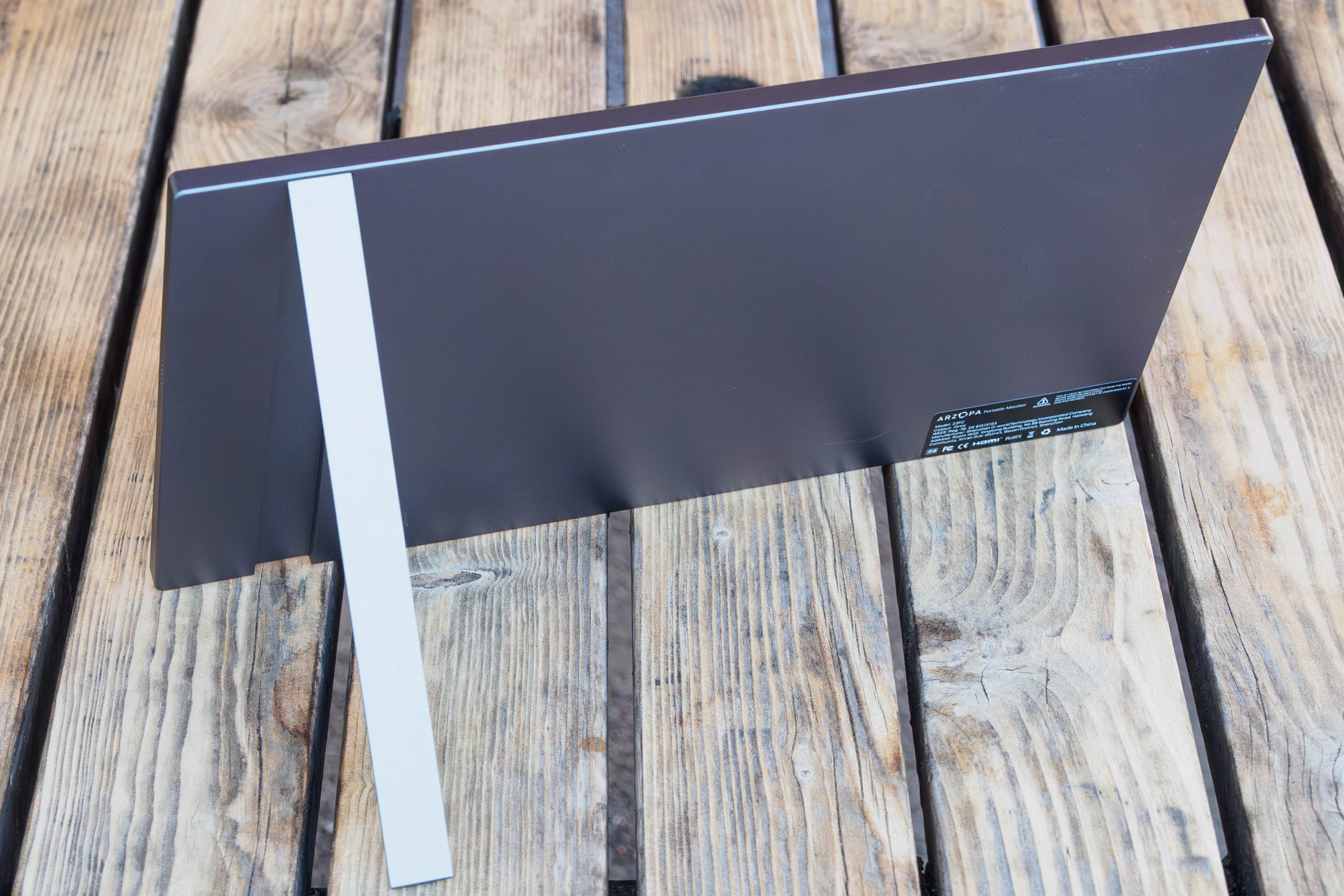
I also really like this monitor’s streamlined design. It’s essentially a flat slab measuring 336 x 228 x 9.3mm, with no protrusions thanks to its neat fold-away kickstand. I’ve found it’ll fit into pretty much any of my bags that are advertised as holding a 15-in laptop. A padded protective sleeve is included, with the only slight disappointment being that it doesn’t have a separate pocket for the cables.
Arzopa Z3FC key features:
- Compatibility: This screen can be used with laptops, tablets, smartphones, and gaming consoles
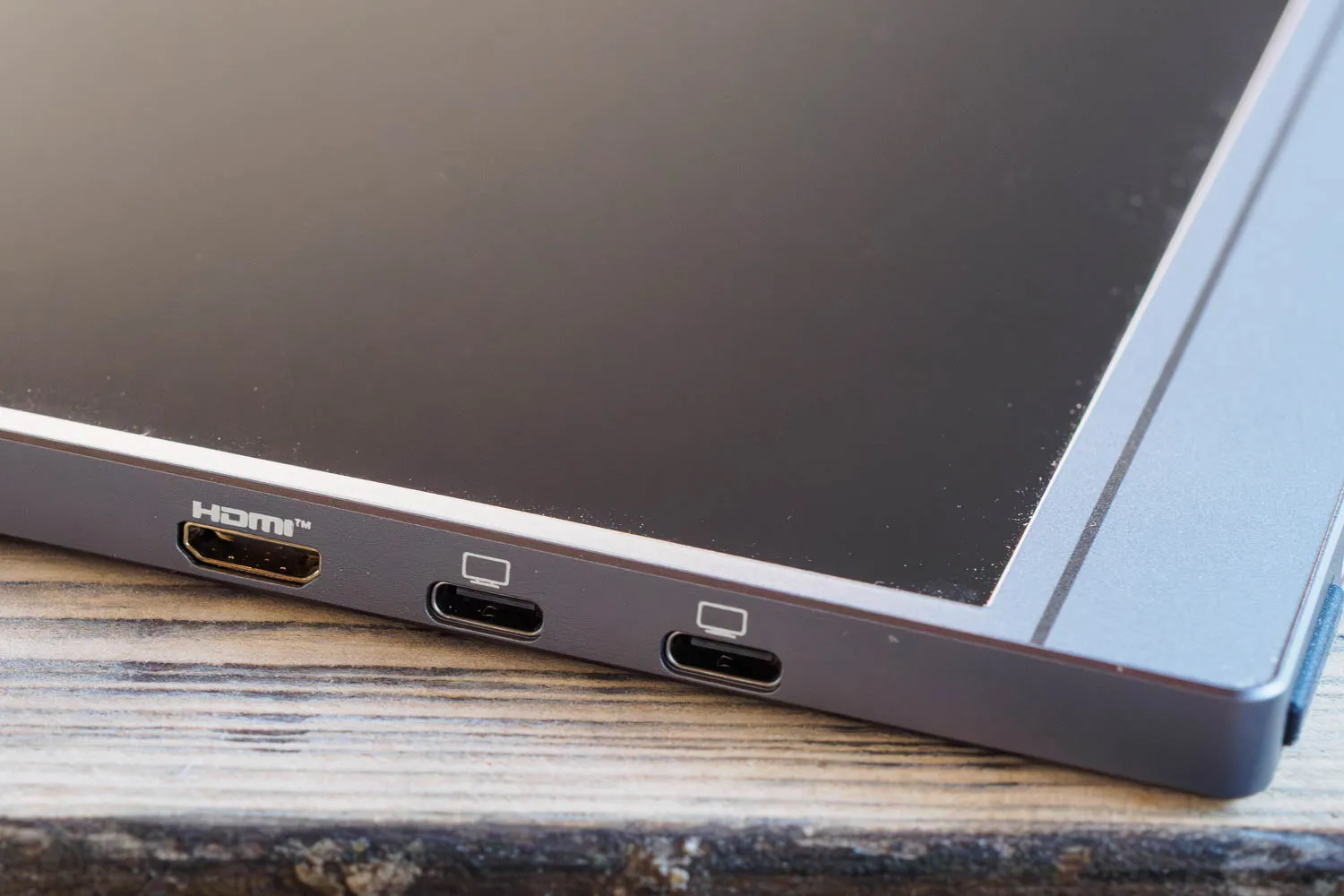
- Connectors: You get one mini-HDMI and two USB-C input ports, all of which can accept video signals. The second USB-C is used to power the monitor when using an HDMI input, or low-power USB-C inputs, for example from smartphones.
- Integrated stand: A fold-out kickstand is integrated neatly into the back and supports the monitor at a wide range of angles
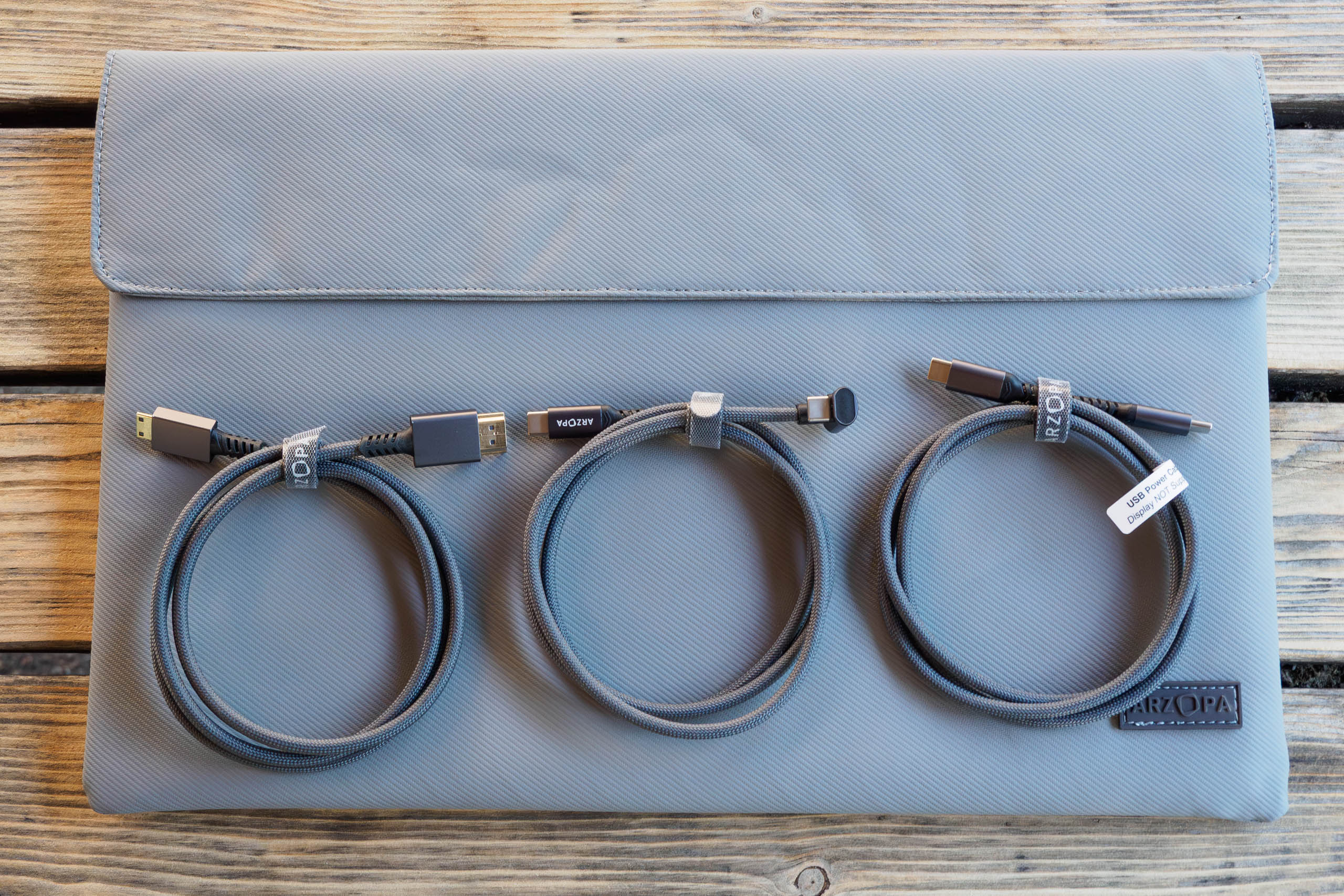
- Kit contents: A soft fabric protective case is included, along with an HDMI cable and 2 USB-C cables – one for display and the other for power only
In use
With most laptops, this monitor will work simply by plugging it into a USB-C port, from where it will draw both signal and power. But with other devices, it will likely need an additional 5V, 2.4A USB-C input. That could be either a mains power supply or a powerbank.
You get a full set of good-quality cables in the box that should cover pretty much every eventuality. The USB-C video cable has a 180° connector, which is particularly neat if you want to place the screen to the left of your laptop. The other USB-C cable is for power only and won’t carry a video signal, which caught me out the first time I tried to use it. There’s also an HDMI cable.
As the screen has an HDMI input, you might even think of wiring it to a camera for live view or playback. However, this wasn’t very useful when I tested it with my Sony A7R V, as the camera’s 3:2 output was cropped on the 16:9 screen. There’s no obvious way to fix this from either the camera or monitor menus, so I wouldn’t recommend buying it primarily for this purpose.
Using the DataColor Spyder X colorimeter, the screen achieved its advertised colour gamut and calibrated to a good match for my laptop screen. In practice, I’ve found it particularly useful for running Adobe Bridge while I was editing photos in Camera Raw on my main screen. Colours and fine detail are both displayed very nicely.
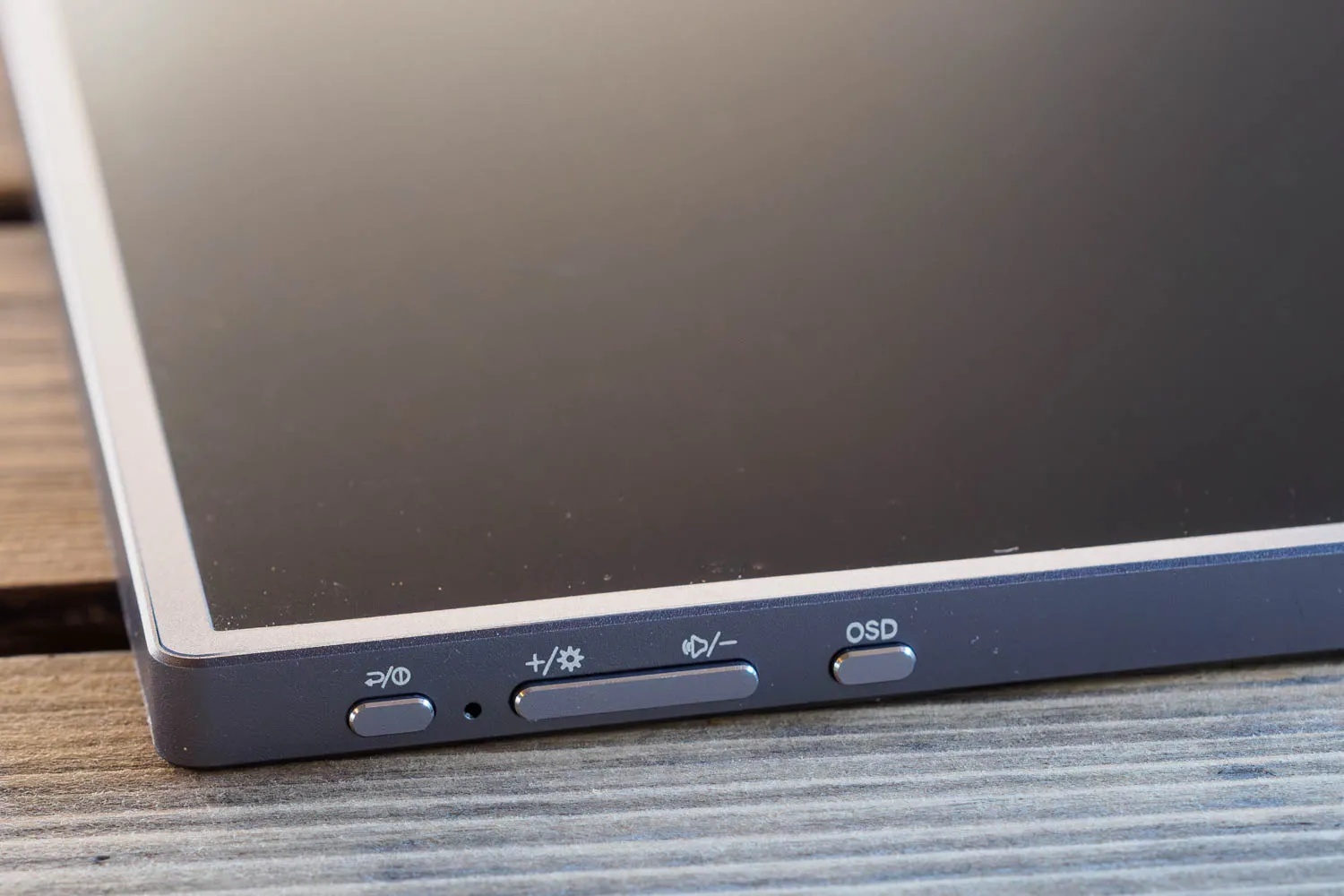
A set of buttons on the side control the onscreen display (OSD), where you can fine-tune the colour, contrast and so on. The interface is a bit clunky, but that’s true with most monitors I’ve used. Generally you’ll only need to adjust the brightness, which you can do directly with the + and – keys.
The screen has small built-in speakers at each edge, and chances are they’ll hijack your computer’s audio output. They’re not particularly good though, giving low-volume, tinny sound. So you may well want to switch back to computer audio, especially if you plan on using use this screen to edit videos or watch movies. Of course, this isn’t a problem when editing photos.
Arzopa also makes a wide range of other portable monitors, with sizes from 14in to 17.3in, and different spec LCD panels. For example, if you’re on a tighter budget, the 16.1in Z1C combines 1920 x 1080 resolution with 100% sRGB coverage for around $100 / £100. Alternatively if size is more important to you, the A1M is 17.3in, 1920 x 1080, and 103% sRGB for $160 / £150.
Arzopa Z3FC: Our Verdict
If you’d like a portable monitor for photo editing with your laptop, the Arzopa Z3FC fits the bill nicely. It’s easy to carry, easy to use, and displays your images nicely. Best of all, it’s affordable, and regularly available on Amazon with significant discounts, too.
Related reading:
Follow AP on Facebook, Instagram, YouTube and TikTok.