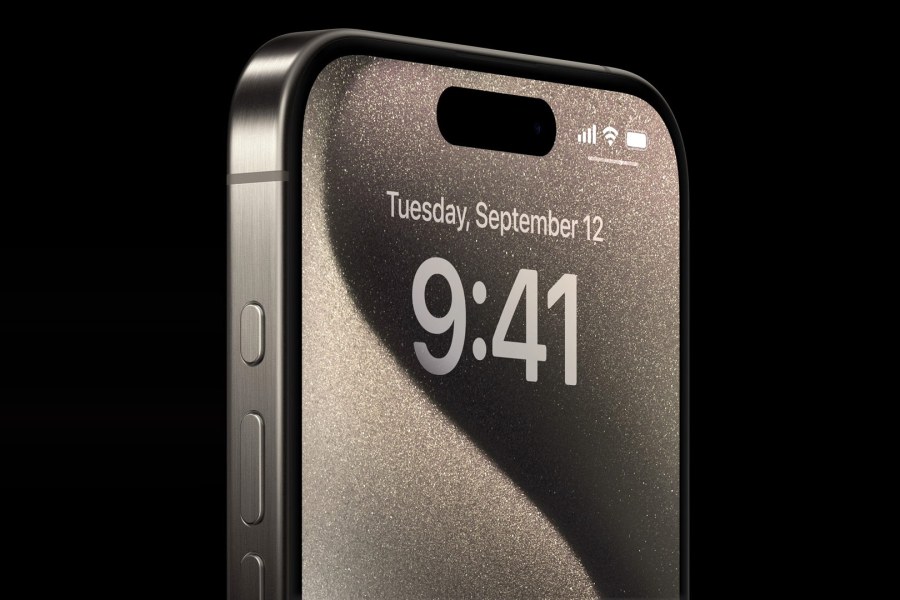
The Camera Control button debuted with 2024’s iPhones. At first, it felt like an odd addition for Apple – a company famously obsessed with minimalist design. But for photographers, a dedicated shutter quickly proved its worth. With a press, you can launch a camera app (chosen in Settings > Camera > ‘Camera Control’), and light swipes and half-presses then let you make adjustments without touching the screen.
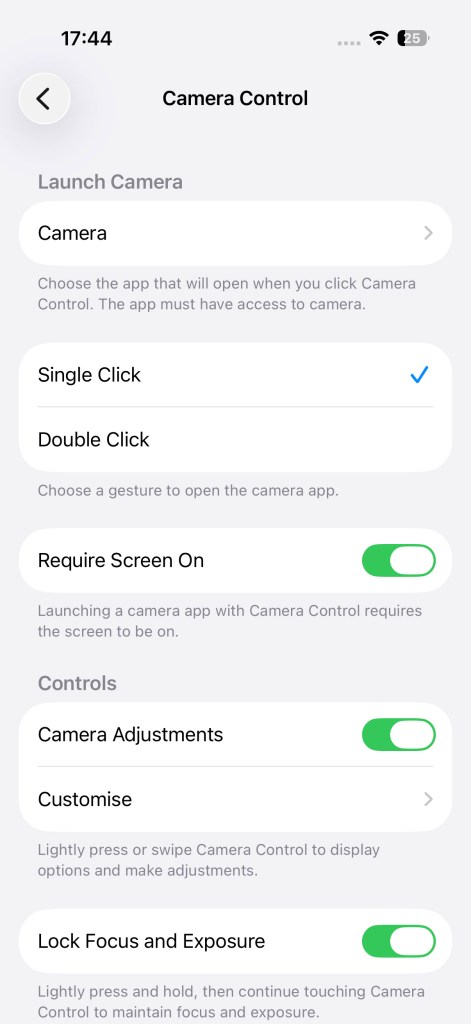
There are, however, two major limitations. First, not every iPhone includes Camera Control. Secondly, it only supports one camera app at a time. And if you’re big into iPhone photography, chances are you work with a bunch of camera apps, along with a range of editing and sharing tools. Fortunately, iPhones have another button you can use for all that.
The Action button rocked up on the iPhone 15 Pro in 2023, and became standard across the line the following year. Even the iPhone 16e has one. Yet, from what I can tell, most iPhone users barely know it exists.
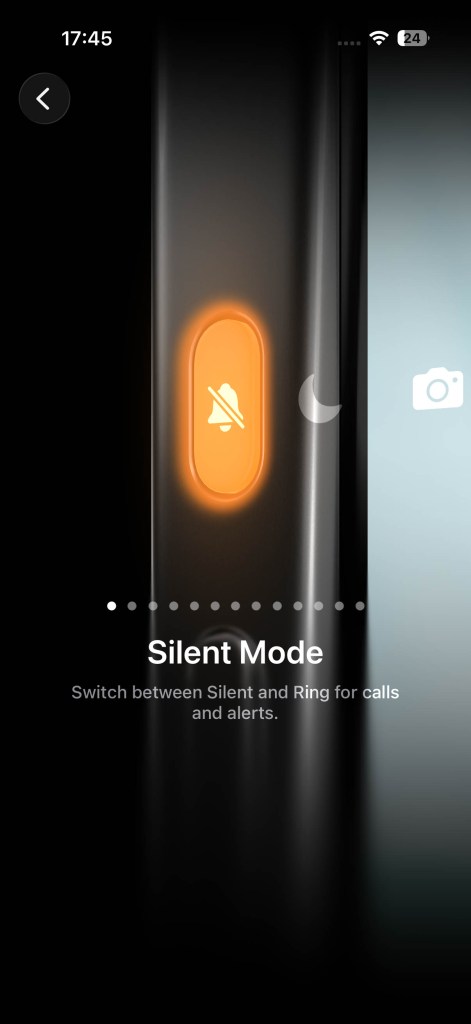
By default, the Action button toggles Silent mode, but you can customise its behaviour in Settings > ‘Action Button’. Several options are available. By far the most useful is Shortcut, because that lets you do all kinds of things with the Action button. Such as, for example, turning it into a powerful launcher for photographers.
Lights, cameras, actions
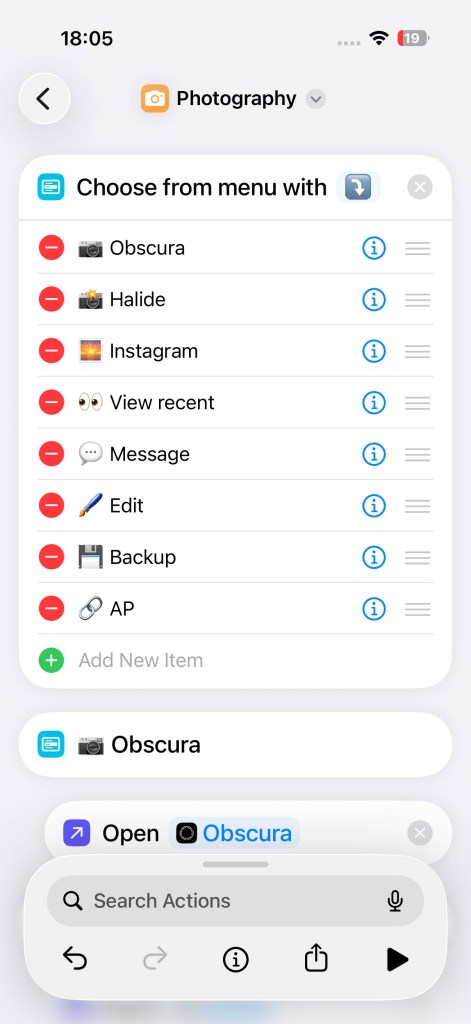
If you like the sound of that, open the Shortcuts app and tap + to create a new shortcut. Search for and select ‘Choose from Menu’ from the actions list. This creates a pop-up menu that appears when you press the Action button.
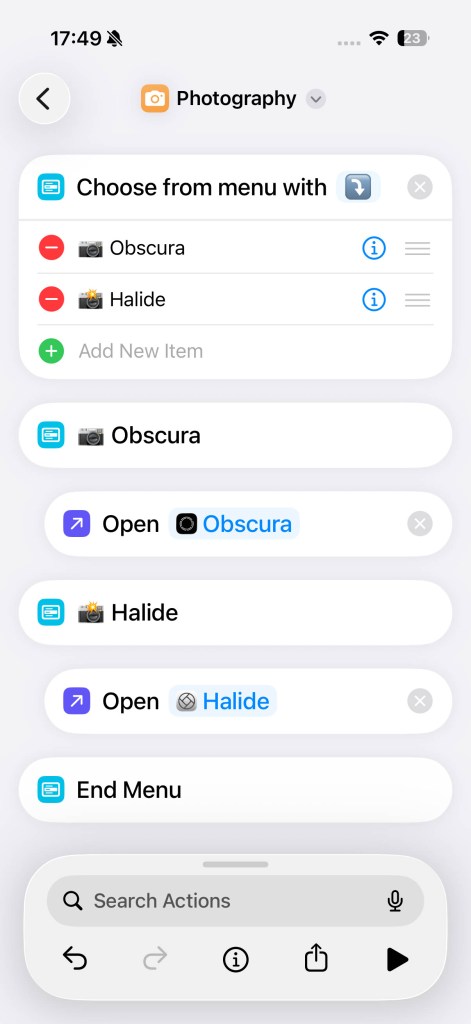
Before adding anything else, tap the shortcut name at the top of the screen and rename it to something sensible, such as Photography. Also tap ‘Choose Icon’ and pick a natty camera icon.
By default, your menu will contain two blank entries, imaginatively titled One and Two. Let’s turn those into app launchers. In each case, tap in the ‘Search Actions’ field, pick ‘Open App’, tap App and choose a camera app from the list.
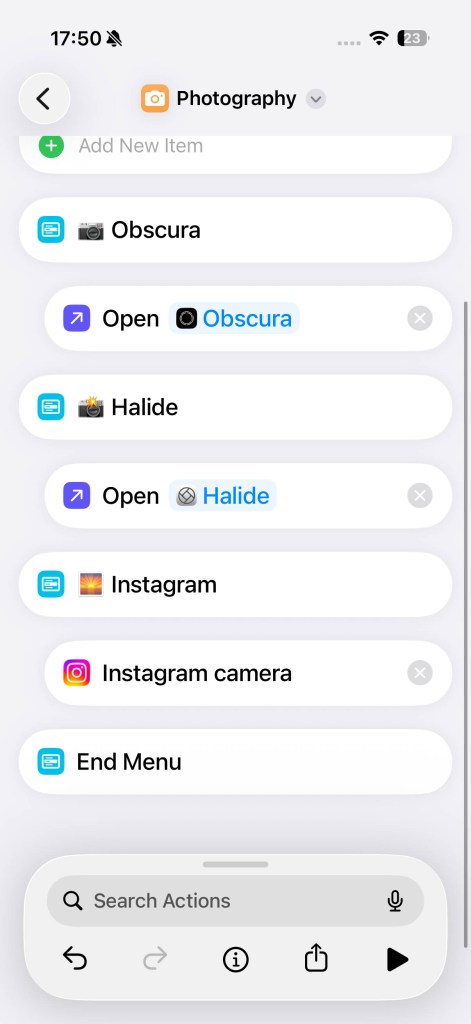
Drag each action beneath a menu item and rename the associated item to match the app. Adding emoji to these names can make each item easier to spot at a glance. Once done, press play to test your shortcut. You should now see a custom menu with your defined options.
With Instagram, things are slightly different, because you don’t just want to open the app – you want to jump straight to the camera. Fortunately, there’s a pre-made action for that. Tap ‘Add New Item’ to add a new list item, and then follow the same process as before, but pick ‘Instagram camera’ rather than ‘Open App’.
The bigger picture
Launching apps is useful, but Shortcuts becomes even more powerful when you consider other things you might like to do – and combine actions.
To view your most recent photo, add a menu item called ‘View recent’. Drag to it a ‘Get Latest Photos’ action, leaving it set to retrieve one image. (Tap the arrow beside the action if you want to omit screenshots.) Then drag beneath it a ‘Quick Look’ action.
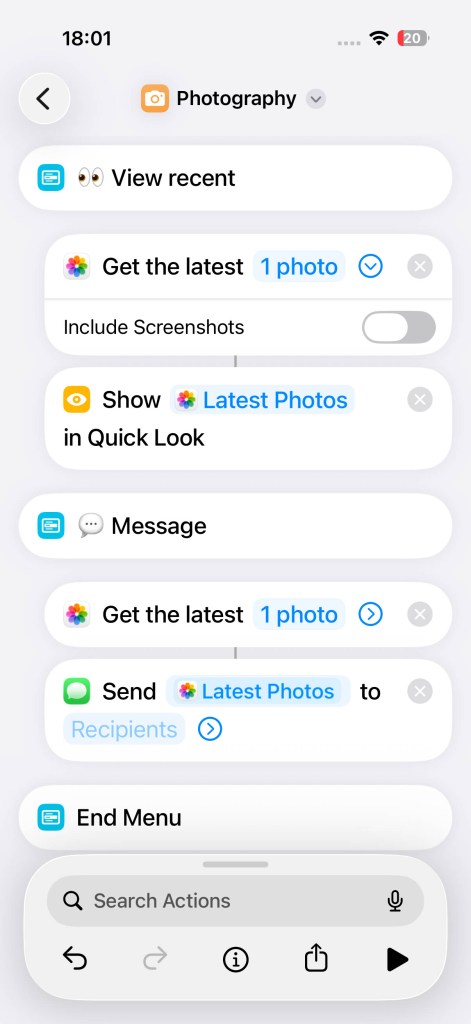
The two actions will attach, updating the Input variable of the Quick Look action to show ‘Latest Photos’. If you test the action now, tapping this menu item will – after a second or so – load your latest photo into Quick Look.
Follow the same process but use ‘Send Message’ rather than ‘Quick Look’ and you’ll have a single-tap item for loading your latest snap into Messages. (You could also try figuring out how to make a similar shortcut for email.)
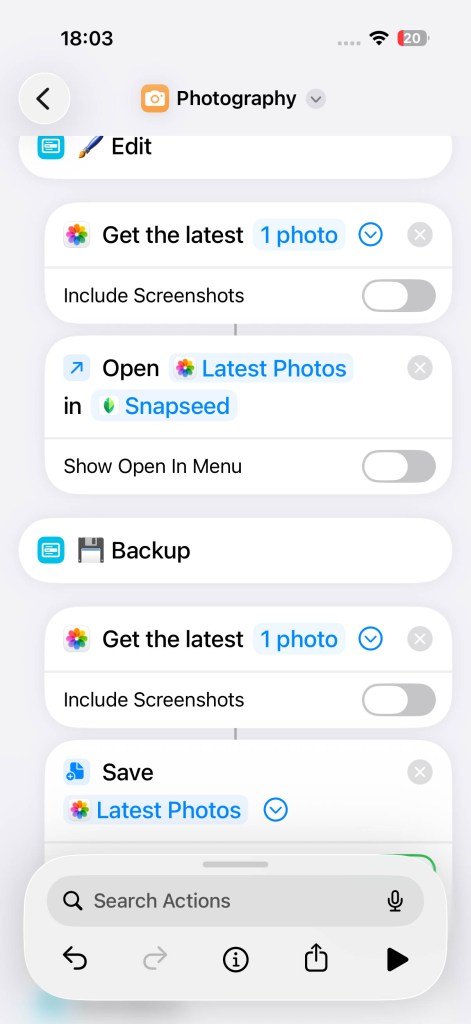
Other useful two-step actions that start with ‘Get Latest Photos’ involve editing and backups. For the former, set the second step to ‘Open File’ and choose Snapseed as the app. (Snapseed works well with this shortcut, but not every editing app will!)
For backing up, use a ‘Save File’ action, open its options, and enable ‘Ask Where To Save’. In use, this will let you quickly save a copy of your latest photo to iCloud Drive or local storage – a vital safety net for your most important shots.
Right on the button
Shortcuts exist for all kinds of other actions too. For example, if you’d like a blazing-fast way to access this website (and why wouldn’t you?), use an ‘Open URL’ action and type ‘https://amateurphotographer.com’ in the URL field.
Once you consider your menu done, head back to Settings > ‘Action Button’, swipe across to Shortcut, and select Photography from the list. Now, every press of the Action button will bring up your personalised photography hub.
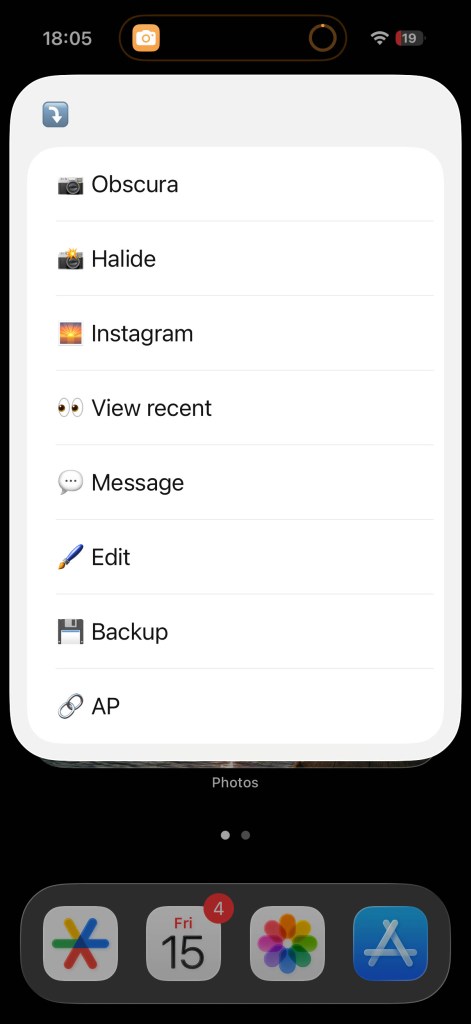
The best part is that you can keep refining it over time, whenever you discover new apps or tasks you’d like fast access to. Open the Shortcuts app, long-press your shortcut, tap Edit, and make your changes.
Do be choosy, though. On an iPhone Pro running iOS 26, you can’t add more than nine items before scrolling becomes necessary. So be opinionated and precise, tailoring this menu to your individual workflow, and you’ll quickly find the Action button becomes one of the most useful photography tools on your iPhone.
Related reading
- Best iPhone for photography – these are the top rated options
- Best phone tripod for iPhones and smartphones
- Phone vs Camera – they say I’m mad to use a phone for video
Follow AP on Facebook, Instagram, YouTube and TikTok.