There’s lots of ways to take great photographs with your iPhone, but one of the best things about smartphones is the work they can do AFTER you’ve taken your shot, right there in the device itself.
For me, I love taking photographs of my kids with my iPhone. While I do use a standalone camera to get special shots, for every day pictures and snapshots, my iPhone 17 Pro is superb. It’s also, obviously, the camera I have with me pretty much all of the time. My oldest daughter is so used to seeing it come out to capture a moment that she’s started posing and saying cheese before I’ve even had time to open the camera app.
The iPhone 17 Pro is great for taking portrait shots, and there’s a dedicated Portrait mode which you can switch to and experiment with to your heart’s content.
But anyone who’s ever photographed small children will know, they’re not always predictable and sometimes capturing the moment relies on speed and a quick reaction. This is where my absolute favourite setting on my iPhone comes in handy, I’ve lost track of how many times I’ve used it.
I’m talking about the ability to turn any regular photo into a Portrait, long after I’ve shot it. Meaning I don’t have to remember to engage a specific mode to shoot it – or perhaps more accurately, I don’t have to spend valuable seconds getting to the right set-up.

It’s also quite useful if something hasn’t quite worked as a Portrait too – if the blurry background is a little bit iffy, or actually, you’d rather see a bit of context as to what’s going on in the shot.
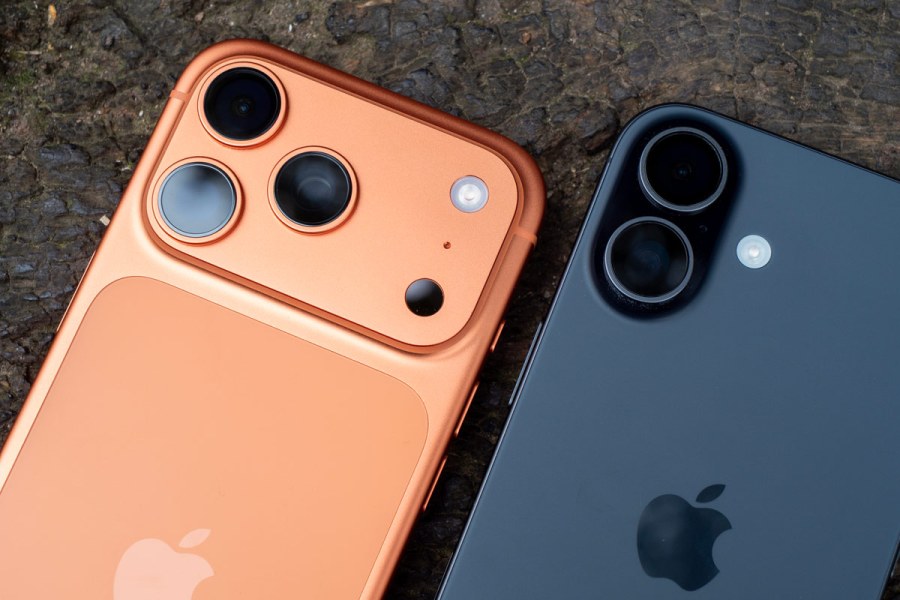
The setting isn’t exclusive to the iPhone 17 Pro, you also see it on the iPhone 17, iPhone 16 Pro, iPhone 16 and iPhone 15 Pro. Unfortunately, Apple doesn’t allow it on the iPhone 16e, which is a sacrifice you need to make for getting the most budget iPhone available I guess.
To access it is simple. Go to one of your photos of a person (or a dog, cat or sometimes other animals), and in the top left hand corner of the screen you should see a little drop down menu. Here you’ll be able to select “Portrait” or “Portrait Off”.
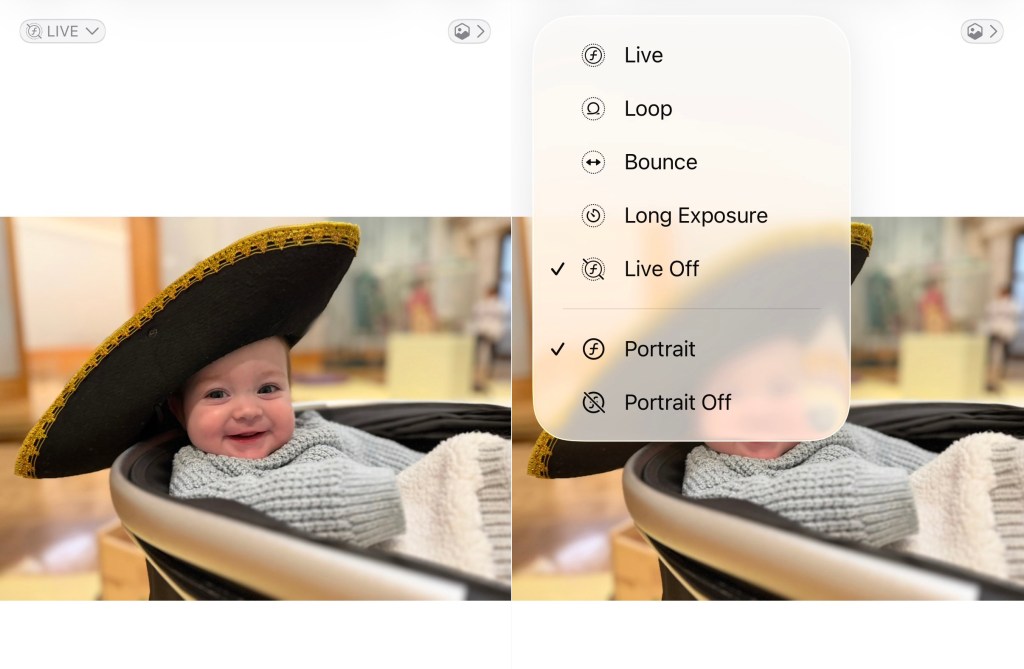
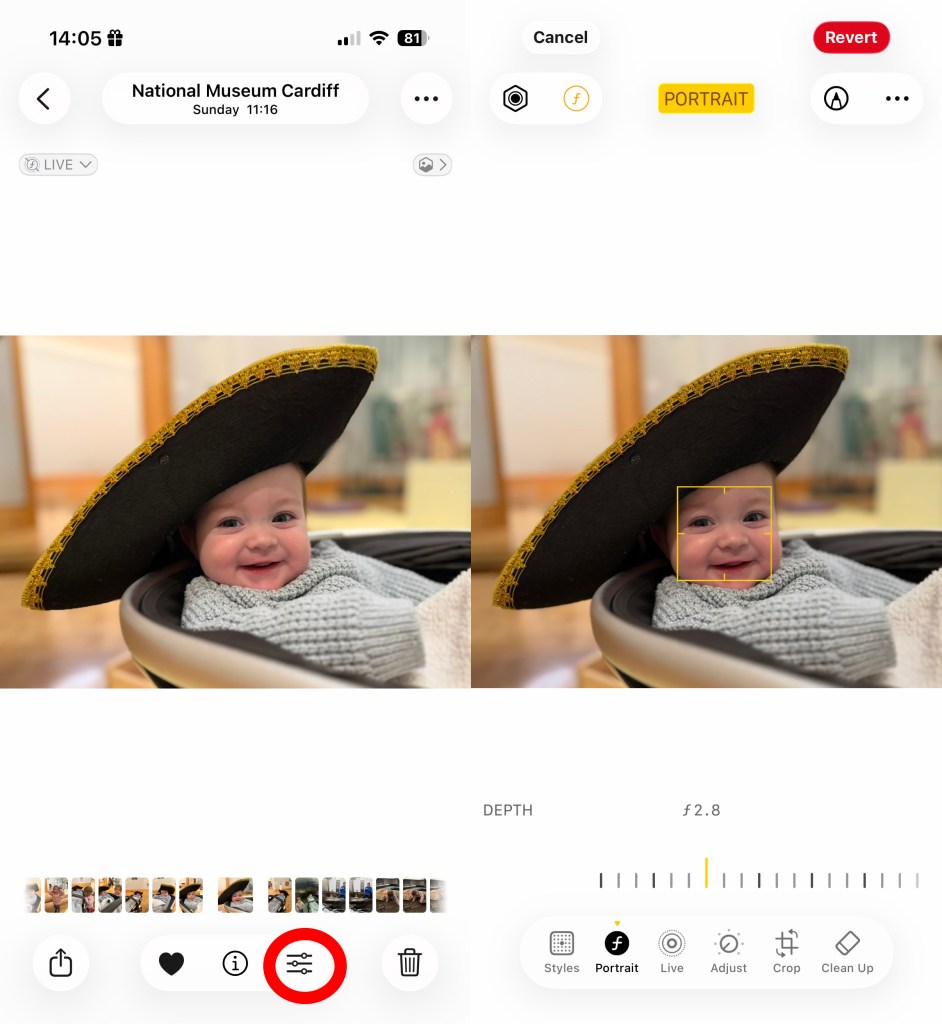
You can go even further too, by pressing the Edit icon (which looks like three lines with circles running through them). In this part of the app you can adjust the strength of the background blur (the simulated aperture value) and you can even change the focus point too – useful stuff.
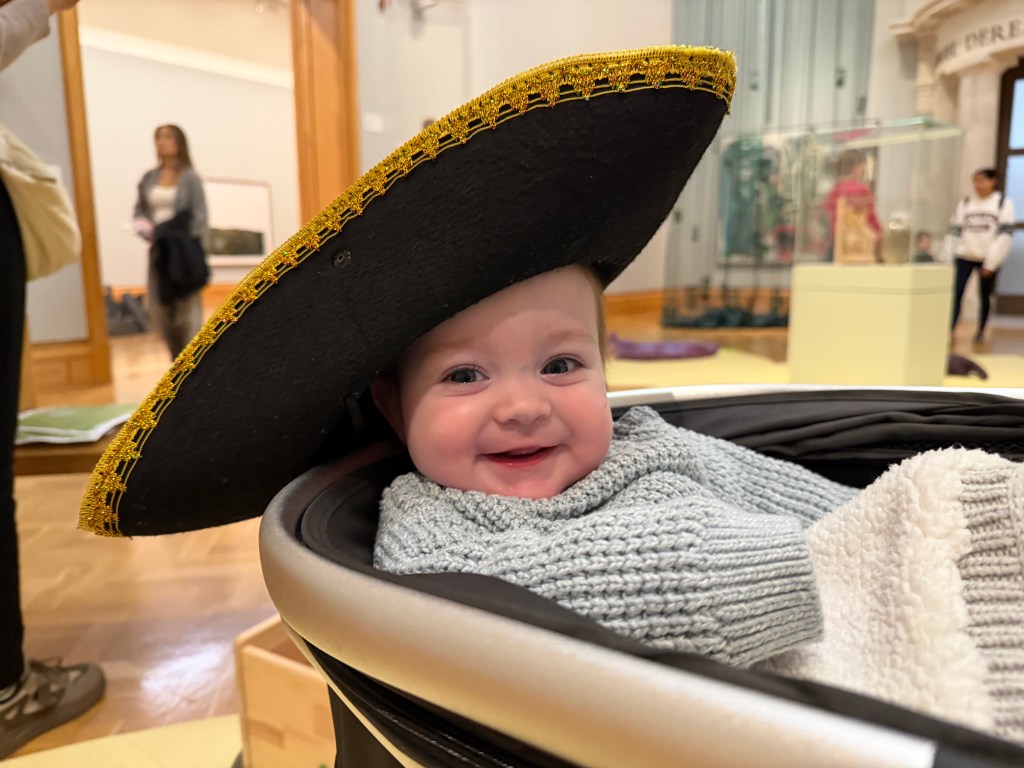
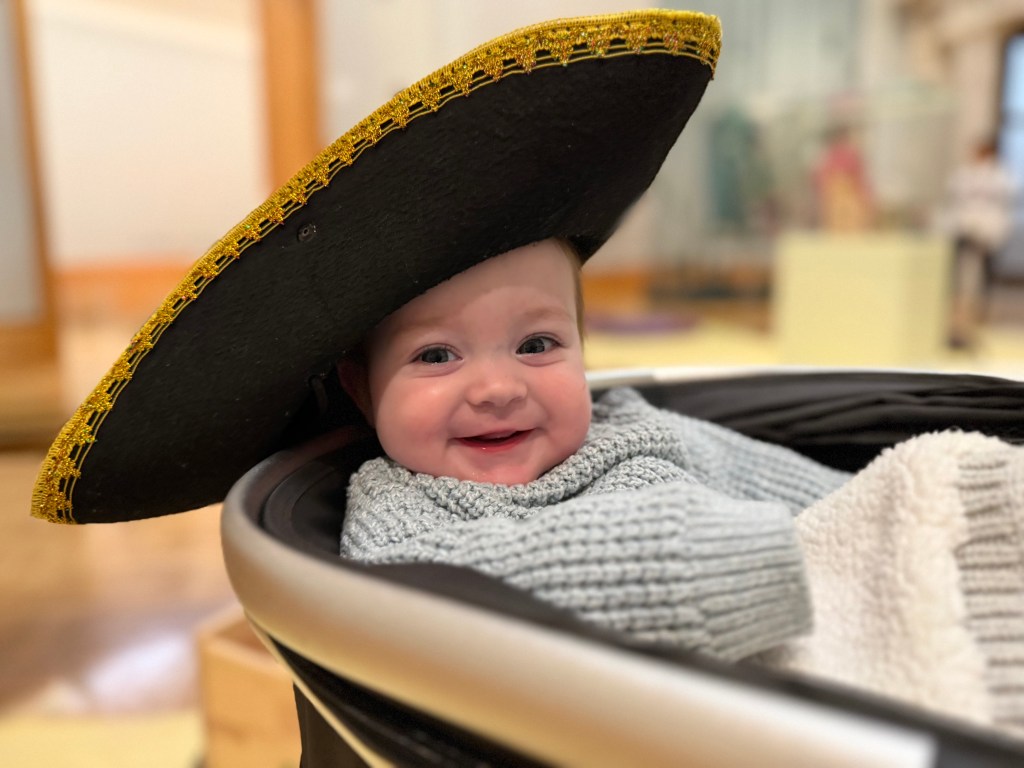
Sometimes I also like to remove distracting elements from the background – such as in this picture below, the people behind the subject are easily removed by Apple Intelligence to make for a cleaner shot, and the blurred background pulls the focus to the cheeky smile of my youngest. This was quickly snapped in the standard Photo mode as I knew I wouldn’t have much time before she looked away, ripped the hat off or pulled a grumpy face. Use the slider to compare the original messy, grab shot, with the edited, portrait mode version.
I’m so used to adding the Portrait feature after I’ve taken a shot that it comes as a surprise when I test other phones that don’t have it – plenty of Androids do something similar, such as the Google Pixel 10 Pro, but not all.
So there we have it, a feature that is relatively simple but almost certainly my most used iPhone camera feature – slightly hidden away but oh so useful.
Read more:
Follow AP on Facebook, Instagram, YouTube and TikTok.