Amateur Photographer verdict
While the credit-based system won’t suit everyone and the software has some limitations, there is a lot to like about Evoto’s package. A good example of how AI can help photographers of all levels.- Advanced automated portrait retouching
- Easy-to-navigate user interface
- Works with JPEG and raw files
- Free to use until you export
- Credit-based pricing won’t suit all photographers
- No Photoshop-style Layer operation
Evoto AI at a glance
- Free to download; exports cost credits
- AI-powered portrait and landscape workflow editor
- Windows and macOS compatible
- Versions also available for iPad/Mobile
A lot of photographers are sceptical about AI, or keep away from it altogether. But maybe they are being too cautious. For example, it can help speed and up and streamline your photo editing, a task that can often seem onerous when done the conventional way.
Evoto AI offers up a ‘pay as you play’ approach, where users buy credits to spend on their edits. Remember, the editing is free to use, but unlike traditional image-editing software that requires a one-time purchase or a flat monthly subscription, Evoto’s business model is different; you pay per exported image using a credit system.
This approach may provoke a sharp intake of breath, but as a working professional who has multiple shoots lined up per week, the promise of speeding up my workflow could well be enough for me to consider such a business model…. But only if the software performs.
An easy to use interface
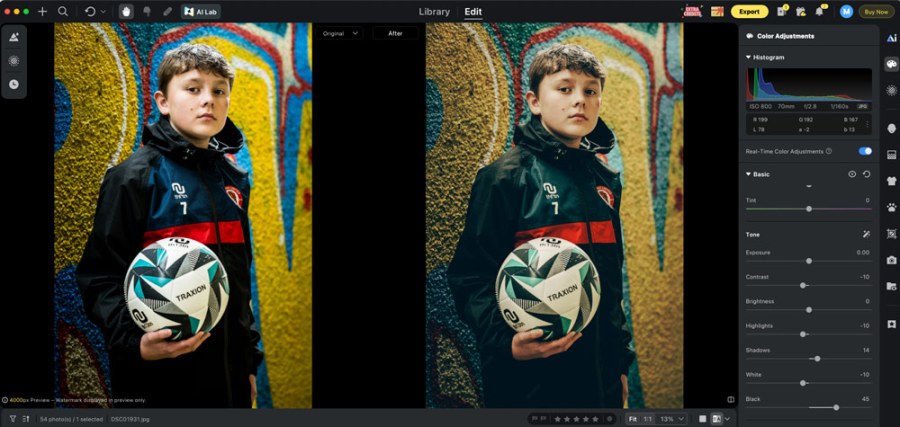
Those new to Evoto should take the time on installation to follow the start-up wizard, which does a good job at explaining the interface and features. More reminiscent to Lightroom than to a more layer-intensive software such as Photoshop, you have global adjustments to the right side of the screen and Presets, Masking and History on the left. Manual tools, including Liquify and the Healing tool, are at the top of the interface, so actually, you can get your bearings pretty quickly.
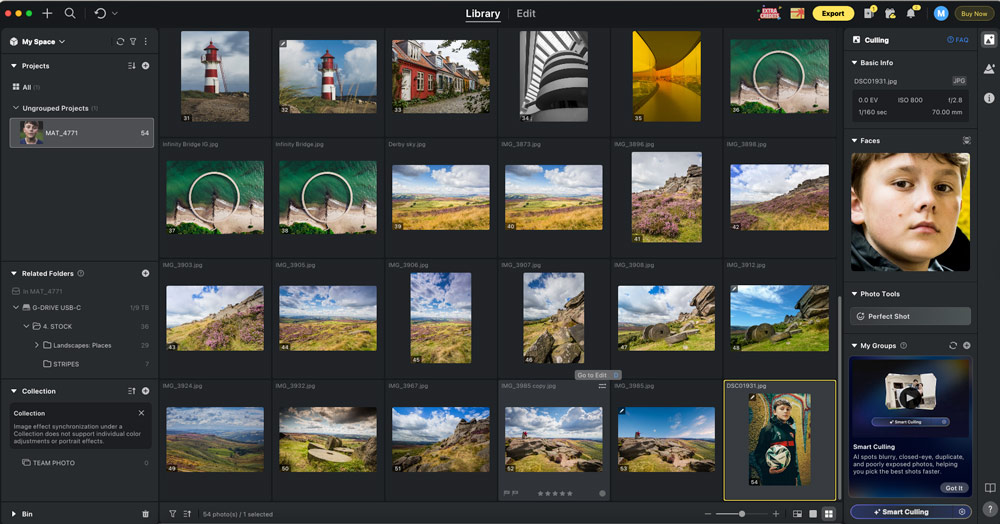
Before we talk more about editing, let’s start by looking at what features can be found in the Library element of the program. This is where your images are imported, organised and sorted. You can create a ‘Collection’ for a specific event (a wedding, a football game etc) to keep your library neat, and this is where one of Evoto’s big AI tools can be deployed. AI-based Smart Culling will aim to cut down your image selection by removing duplicates.
I like this – in the age of lightning-fast burst rates and plentiful high-capacity memory cards, far too many photographers rely on the ‘spray and pray’ approach and end up with a massive amount of duplication. I do fear that some situations won’t be suitable for culling.
A footballer heading a ball for example, there will be a specific frame that I would normally pull out as the point of contact (head meeting ball) but it may be the case that the AI could cull just the frame you want. On the other hand, there’s no doubt this AI feature will speed up workflow and I think wedding photographers in particular will rejoice.
It’s worth noting that you can fine-tune the settings for the cull, setting Under/Overexposure Detection to Low, Standard or High, turning on/off detection for closed eyes and adjusting the setting for any blur in the frame.
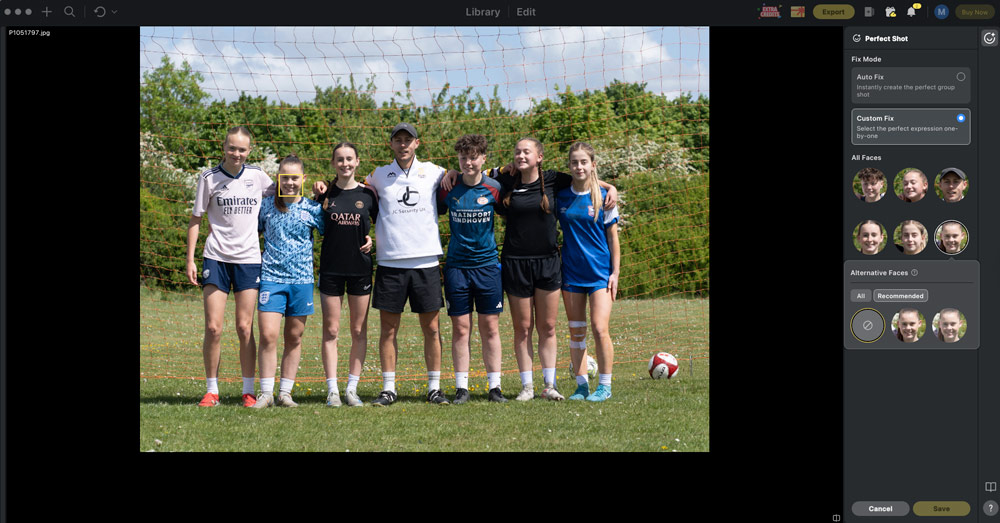
Another feature worth mentioning in the Library Tab is called Perfect Shot – again, this leans on AI to ‘fix’ elements of an image, such as eyes being closed when the shutter was clicked. This feature is particularly useful if you have taken a group shot and nine out of the ten people have their eyes open, as it will fix the odd one out.
As you’d expect, the software also allows you to rate your frames via a star system, with a max rating of five stars and working backwards from there. Again, this is a feature built to save you time and for those who will typical shoot in bulk, filling their SD cards and then needing to wade through frame after frame.
One approach I’d recommend is to cull any duplicates first and then cycle through, rating your images. Then, if time is super tight, you can focus on the highest-rated images first.
Landscape friendly
Because this software is very well-suited to portrait photographers, it’s easy to overlook the features that will bring a smile to the face of landscape photographers so let’s touch on these for a moment.
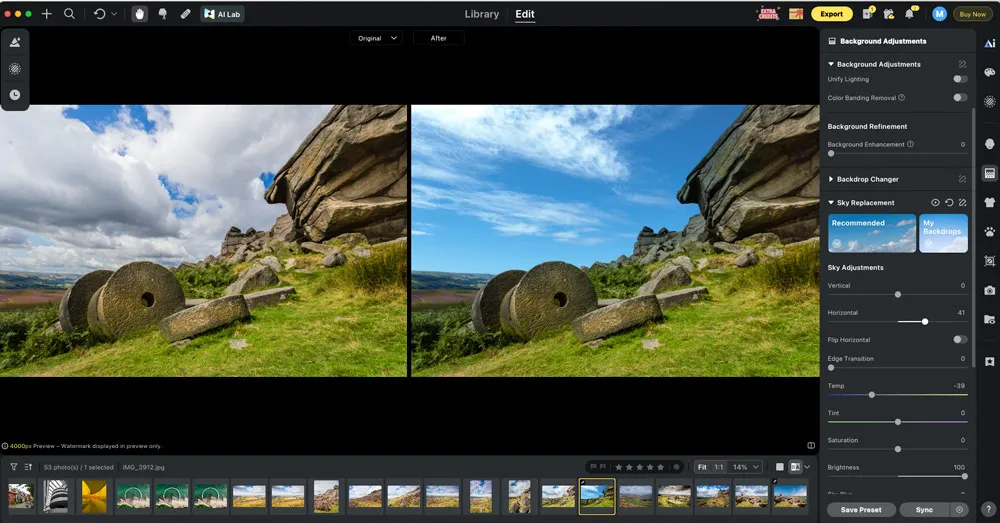
The Sky Replacement tool is advanced, offers a wide range of varied lighting (blue skies and golden hour skies) and works well, delivering photographers a second chance to breathe life into a frame, especially if they were greeted with flat skies when the shutter button was clicked.
I like that users can also upload their own skies to be used as substitutes, too. The Background Enhancement slider peps up original skies and backgrounds, and there are also options such as ‘Clean Backdrop’, which automatically removes distractions from solid colour backdrops.
Impressive global adjustments
Back in the Edit tab, it’s fair to say you’re not short on features. I like the large Before/After reference interface, which delivers a full-size look at any edits you’ve made and how they make your frame differ from the original.
For a program heavy on AI, there’s still a large amount of manual adjustments you can make. In the Basic drop-down option, you’ll find Colour Temp and Tint, Exposure, Contrast, Brightness, Shadows and Highlights, plus more – all of which can be quickly fine-tuned via slider bars.
Dive deeper and there are more precise editing tools, such as a Curves option complete with a Histogram bar, where you can manually reshape the Curves line, affecting the exposure in the image.
If it’s your preference, you can open the Colour Grading tab and take control of how the colour affects the Midtones, Shadows and Highlights via precise colour wheels, while individual colours can be manipulated further in the Selective Colour tab. Lens Corrections can be made manually or with the assistance of AI.
For the majority of the Global adjustments I’ve mentioned, these are pretty standard and can be found in a number of image-editing programs, but in my opinion, Evoto does serve up some pretty special extras.
AI assisted features
If you shoot a lot of portraits, there is a clever option called Clothing Adjustment where you can De-wrinkle clothing – a gem of a tool should your subject be shy of an iron. This feature works surprisingly well, and it increases the production value of the frame.
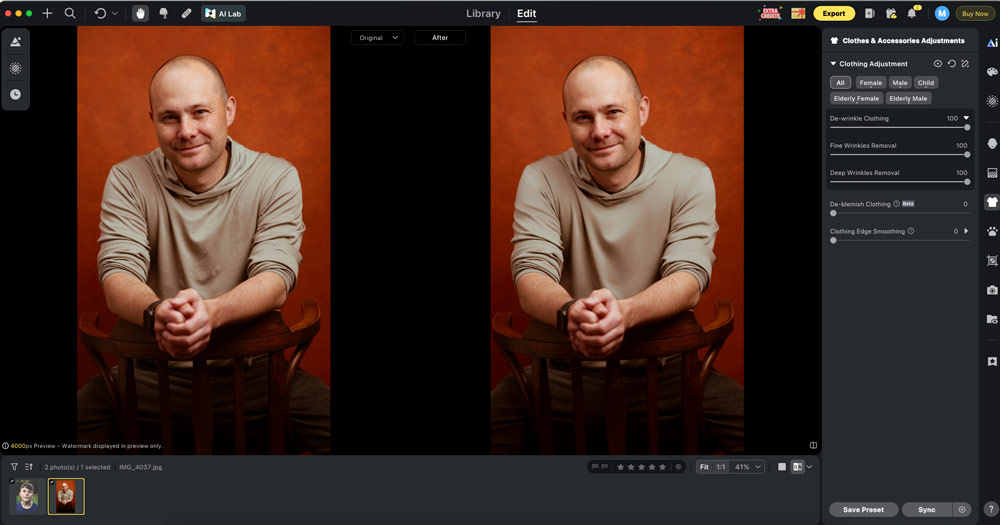
Plus, there’s also a slider to De-blemish clothing, too. These features may sound trivial, but especially with portraits, little details count, and because it takes a matter of seconds to drag a slider bar, there’s no reason why you should have to put up with these imperfections any longer.
Pet photographers will be impressed by the tools to perfect your pooch. Along with an option for detecting and removing a leash from the frame, you can enhance the lighting and colour of your pet’s eyes and there’s a slider bar to remove stray fur. Again, these features sound pretty ‘out there’, but they work well and add polish to your frame.
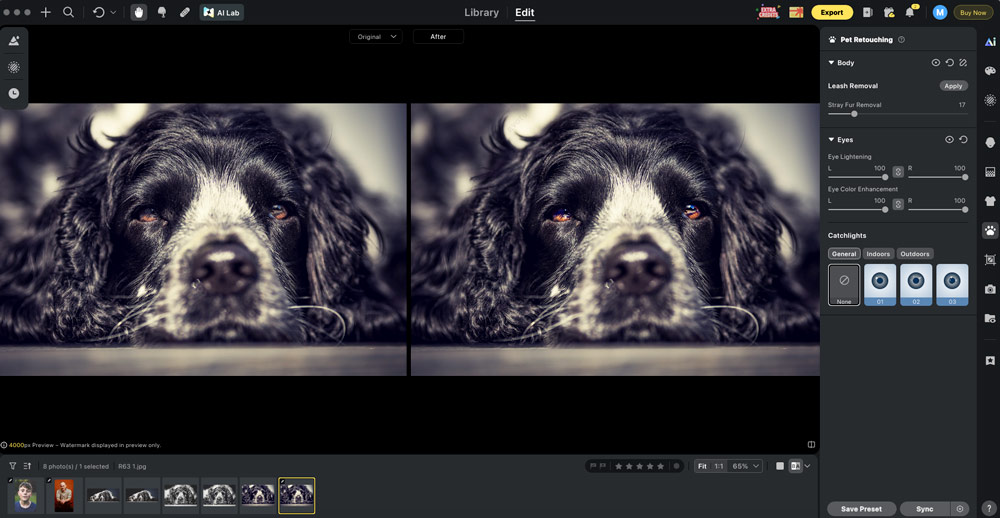
Evoto works with JPEG and raw files and does support the use of a tethered camera so you can instantly import your images and edit on the fly, but I personally prefer to edit images in bulk once a photoshoot is over.
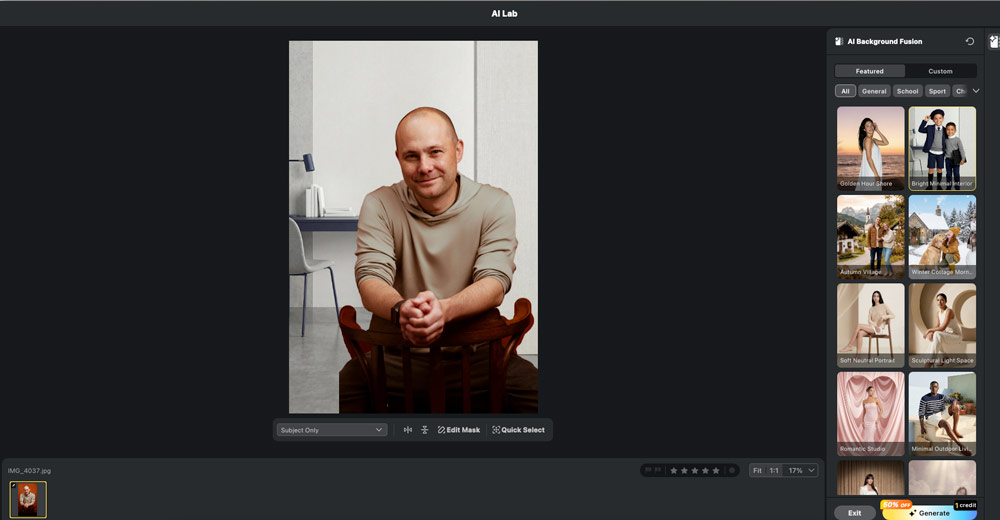
One feature I found to be more hit and miss than others was the AI Background Fusion, which didn’t always pick up and mask the whole body, but in fairness to Evoto, this can be easily remedied via the Edit Mask option, where you can manually paint onto pixels that you wish to be included in the Mask. Event photographers will appreciate this feature – just set up a green screen, capture portraits and then add in a background once you’re back at the computer.
Plentiful presets
The Presets on offer are vast, and many do a great job, providing a vast transformation through one click of the mouse. Some are more subtle, however and Presets are grouped into folders, including Portrait, Event, Headshot and, possibly my favourite, Black and White.
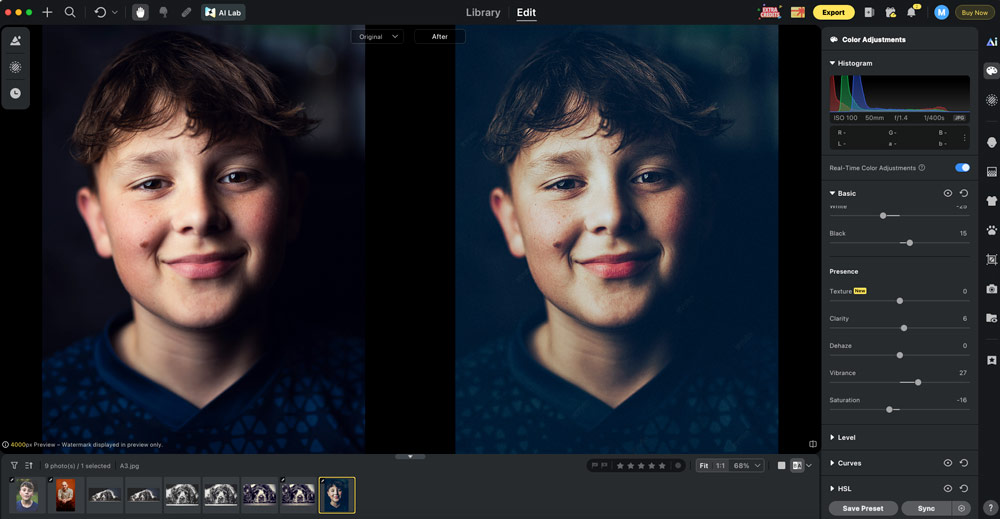
But the Presets kick it up a gear when it comes to the Cinematic folder, offering high-end transformations and advanced colour grading with that one click. Along with the Presets, you can also take advantage of AI Style presets, which are recommended by the software and the intensity of these looks can be increased or decreased via slider bar and then fine-tuned further using the standard adjustments on the right-hand side of the interface.
Powerful portrait enhancement
Arguably, the crown jewel of this software is the Portrait Retouching features, which again lean on AI-assistance and are vast. I’ve used many programs where the retouch goes way over the top and leaves you with a result that doesn’t look natural or normal, but Evoto gets the balance right.
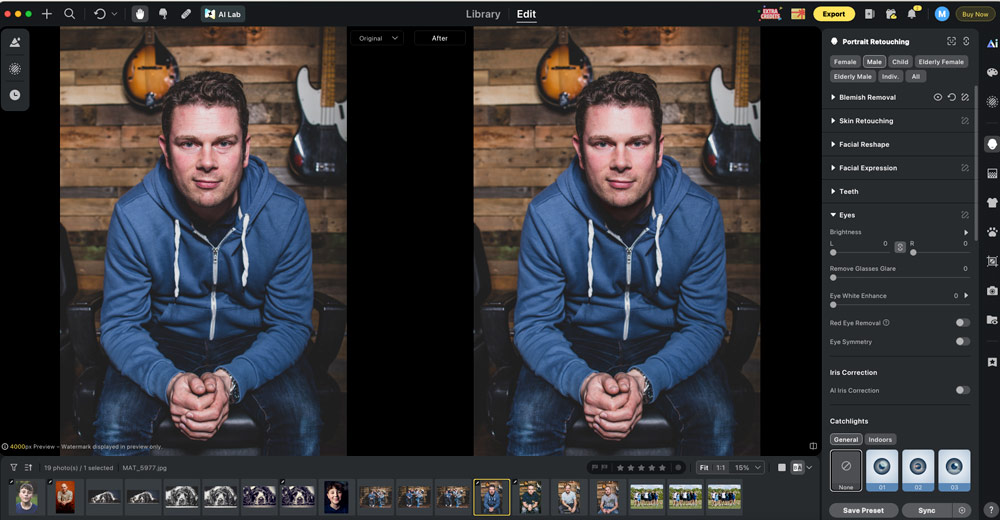
The Portrait Retouching features enable you to tell the software if your subject is Male, Female, a child, an Elderly Male etc and refinements are split up into sections that you can work through to get the look you’re after. Face Refinement includes slides for Freckles & Acne, Face Mole Removal, Dark Circles and Eye Bags removal and even a slider to remove Glasses Glare.
As the name suggests, the Facial Wrinkles section addresses these blemishes, but there’s separate slider bars for Forehead Wrinkles, Nasal Wrinkles, Cheek Wrinkles and more, enabling the user a high degree of control over these powerful tools.
Full-length portraits will benefit from the Body Blemishes slider and there’s even a slider for Stretch Marks. Perhaps a little more expected are controls to enhance Eyes, Teeth, Hair and Makeup, which will suit higher-end portrait and fashion photographers.
It’s hard not to be impressed by the breadth and scale of these retouching options and you’ll keep discovering features that make you think; ‘how did they do that’. For example, if your subject has their mouth closed, you can swap this for a smile, with teeth on show. Mind-blowing.
Credit crunching
When it comes to exporting images, this is where the script is flipped. Credits must be bought and are used every time you export an image.
There are options for an Annual Subscription, Pay-As-You-Go Or Enterprise options if you are running a team of photographers, and then you can choose the amount of credits you wish to buy.
Of course, the more credits you buy, the cheaper they turn out to be – for example, on the Pay As You Go option, 200 credits cost £44, working out to 22p per credit. However, 3600 credits cost £379, working out to 11p per credit – that’s half the price!
Evoto – our verdict
Because of all the negative publicity around AI, it’s easy to be scared off by those two little letters. But dismissing this software because of that would be a mistake. After all, AI can be a good thing – just look how much camera autofocus systems have improved by leaning on AI.
Evoto’s image-editing software achieves a great balance of blending more traditional adjustment options with the new, and highly-impressive AI based options. The best example of this for me is the powerful retouching tools, which move the game to the next level.
The Credit-based transaction model will be divisive – I think for many working professionals, they will see this as less of an issue and almost a business cost they can bake into any quotes and pricing.
Plus, the AI Culling feature lends itself to these sorts of professionals who shoot in high volume and need to deliver results to tight deadlines.
I like the easy-to-use interface, and particularly the results achievable from both the regular Presets and the AI Styles served up by the software. As the editing itself is ‘free’, I’d encourage people to download the software to their PC or Mac and experiment.
Registering will net you 15 free credits, and referring friends will net you more. See how quickly you use the credits and if they go quickly it’s likely this software will prove useful for you, and then you can decide how many credits will be right for your level of usage.