XPPen’s Pilot Pro is an intuitive device that gives your photo and video editing wings. Learn how this clever accessory saves you time and makes editing a more comfortable experience
Sponsored. The humble computer mouse has been around for decades, but it was designed for spreadsheets and Microsoft Word documents – not for the demands of high-end photo editing or video grading.
If you’ve ever found yourself staring at a screen during an all-night edit, battling “keyboard claw” and a strained back while wading through hundreds of raw files in Lightroom Classic, XPPen’s Pilot Pro aims to make your life a lot easier.
It not only supercharges your workflow, but also offers a far more ergonomic approach to post-production.
Watch the XPPen Pilot Pro in action in below
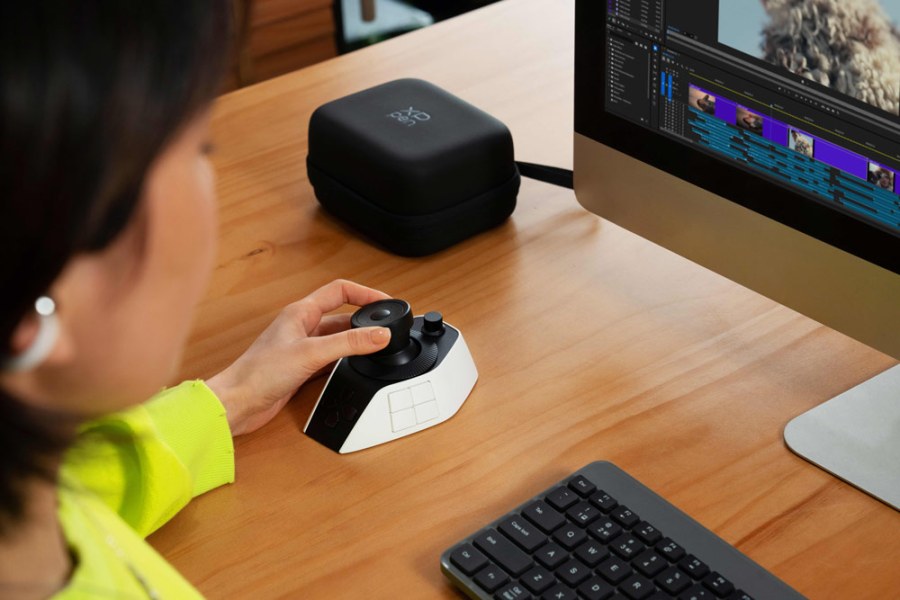
Designed to be used alongside your keyboard and mouse, the Pilot Pro features a streamlined design that incorporates no less than 16 buttons, three rotary wheels and additional knobs.
These controls can be customised to your preference and used with a wide range of software, including Adobe Lightroom Classic, Adobe Photoshop, Adobe Premiere, Da Vinci Resolve and Final Cut Pro.
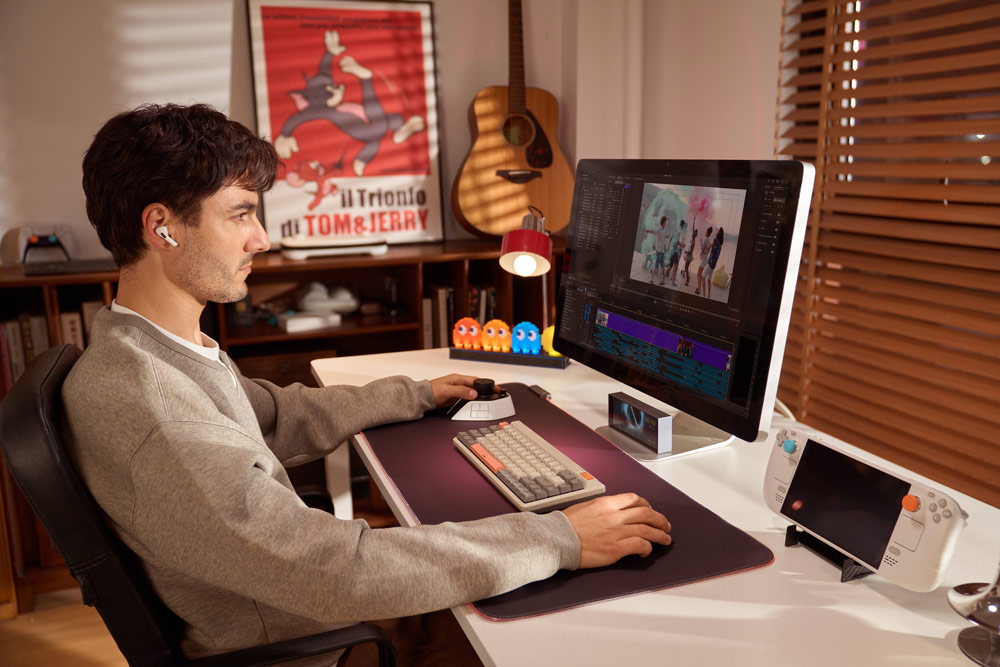
Your wish is its command
The idea is straightforward; rather than wrestling with a keyboard and mouse, photographers and videographers can allocate a seemingly endless list of commands to the Pilot Pro, where the left-hand can either click, press or turn the controls.
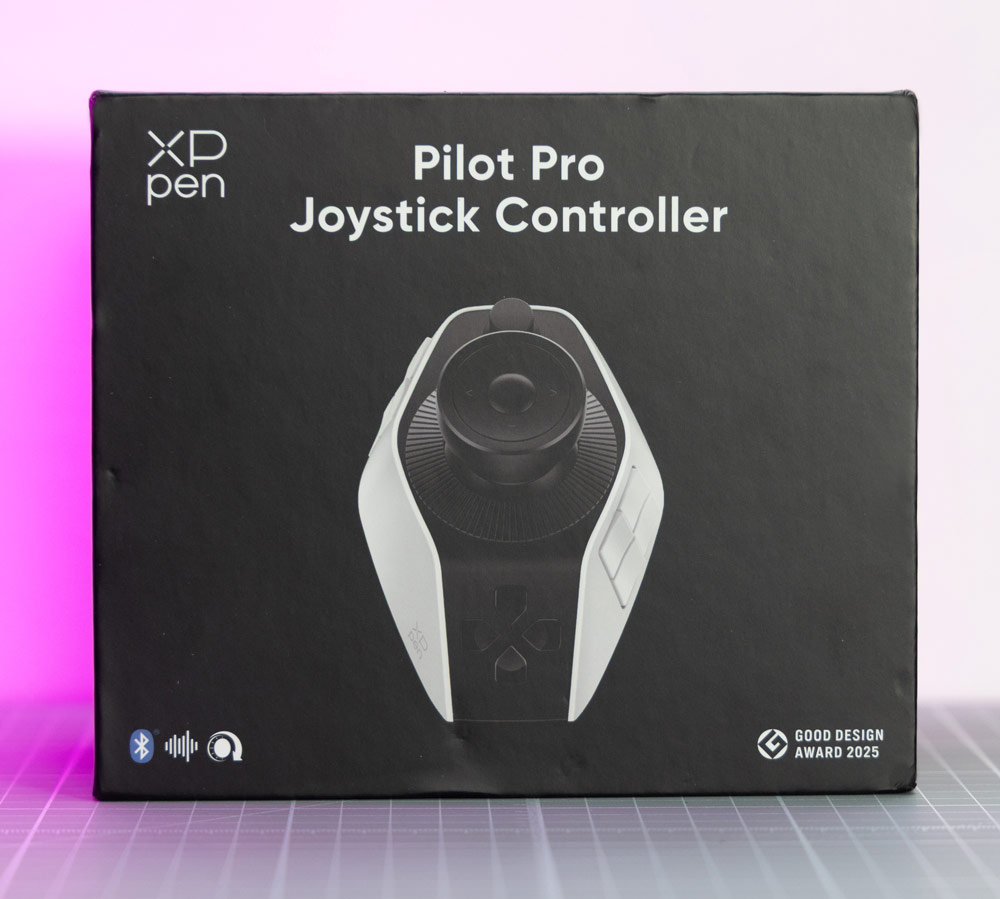
The Pilot Pro boasts a sturdy case, which adds an enhanced level of protection should you be moving between locations with the device. Along with the Pilot Pro itself, accessories include a Bluetooth dongle and a USB lead, along with the manual and warranty card.
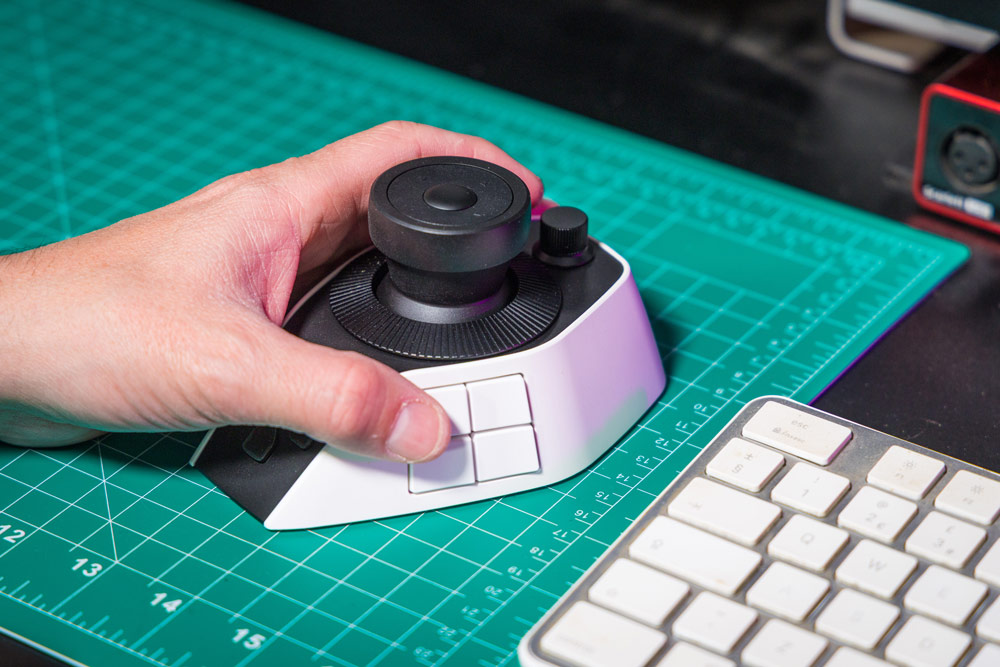
With its sleek lines and sculpted 3D key layout, it shouldn’t come as a big surprise that the Pilot Pro has already picked up a winner’s medal from the Good Design Awards. Despite packing a huge amount of controls, the 251g unit feels streamlined and won’t take up too much space on your desk.
Easy to set up
Having used the Pilot Pro, we were impressed with the setup procedure. Available for PCs running Windows 10 or later and Macs running OS 11 or later, there are a number of different connectivity options.
You can plug in the dongle and choose to use the Pilot Pro via Bluetooth, or you can use the USB lead instead and keep the device tethered and fully charged. The built-in battery offers around 15 days of use, based on four hours of daily operation.
Once the software is installed, a number of screens introduce the various controls on the unit that are available to them. It’s worth taking your time with this stage as, if you intend to use this device heavily, it stands to reason that you will want to familiarise yourself with the controls.
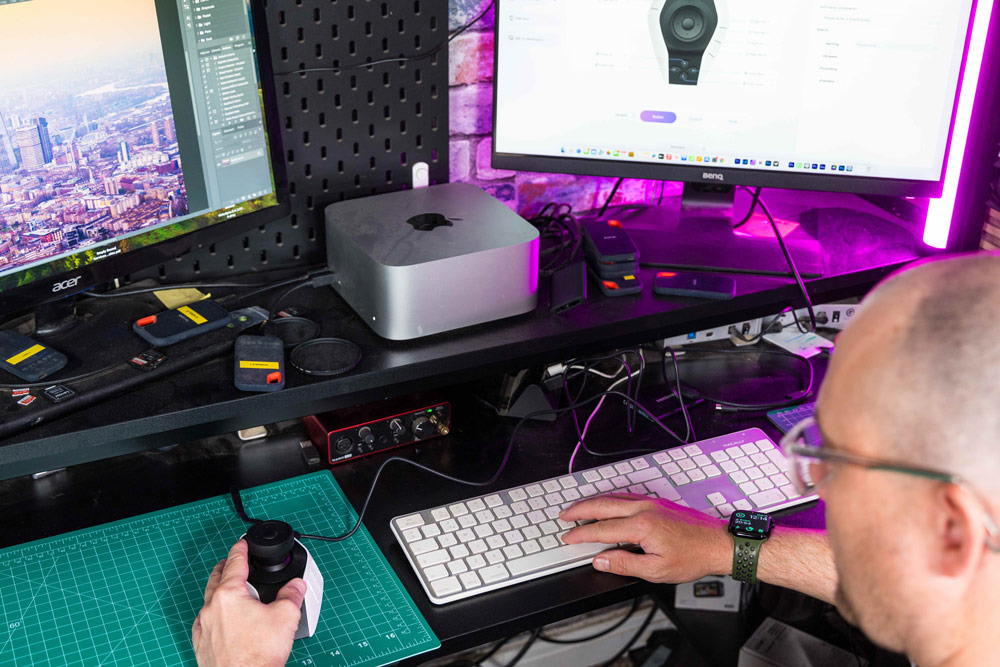
The next stage is discovering the XPPen Control Panel – this is the station where you will interact with the device, customise buttons and also access additional features that we’ll cover later. It’s in the control panel where you can add which software you will be using the Pilot Pro with (Photoshop, Premiere etc) and then start assigning tasks to the various knobs, dials and buttons.
Explore Themes
We suggest adding the jobs and commands you use the most to Pilot Pro because this way you are offloading these tasks from the keyboard to Pilot Pro, this making your life easier and simplifying your workflow.
The device supports switching between ‘Themes’ (up to seven per preset), but all themes belong to the same software preset. In other words, different applications each have their own preset — for example, DaVinci Resolve and Lightroom each have their own dedicated preset, and each of those presets can have up to seven themes.
Within each preset, you can create multiple themes to match different workflows — for example, in the DaVinci preset you might have separate themes for DaVinci’s media management, rough cut, fine cut, and colour grading; and similarly, Lightroom can have up to seven themes of its own.
Of course, it stands to reason that with so many options across different programs, it may take some time to remember everything you’ve programmed in, but the Pilot Pro has a solution for this. Via the Control Panel, you can turn on an HUD display – this feature is well-suited if you are lucky to have a second screen in your set-up.
The HUD display can be toggled on and off instantly with a single press of the OK button (the centre button on the joystick). This makes it incredibly quick and intuitive — it significantly lowers the learning curve and removes the need to memorise button layouts.
You can get an overlay display of your Pilot Pro and what each button, dial and knob has been assigned to, and you can take a quick glance over to remind yourself, while you edit a photo or work on your video creation on the other screen.
It’s a clever additional bonus that can be customised – you can increase or decrease the size of the overlay or choose between a light/dark colour scheme. Over time, it’s likely you’ll be so dialled in to your shortcuts and settings that you can eventually turn the HUD display off, but it’s helpful to get you going.
Wheels and haptics
The more commands and shortcuts you dial into the Pilot Pro, the more time you’ll save. I particularly like the large rotary wheel that surrounds the joystick (which incidentally can be set to 4 or 8-way navigation) because this is the perfect-sized dial to help you scrub through footage and quickly find an edit point.
The haptic action of the dial feels premium, as do the rest of the knobs and buttons. The hardware of the device is complemented by the software via that easy-to-use control panel, and after a few hours of use, it’s surprising how comfortable and familiar you begin to feel with the device until it almost becomes second nature to operate.
Get an exclusive discount
You can get a 10% discount using the code AMATEU10 and clicking this link. This offer is valid until 20th June 2026 and is stackable with the existing site discount, bringing the final price to approximately £145!
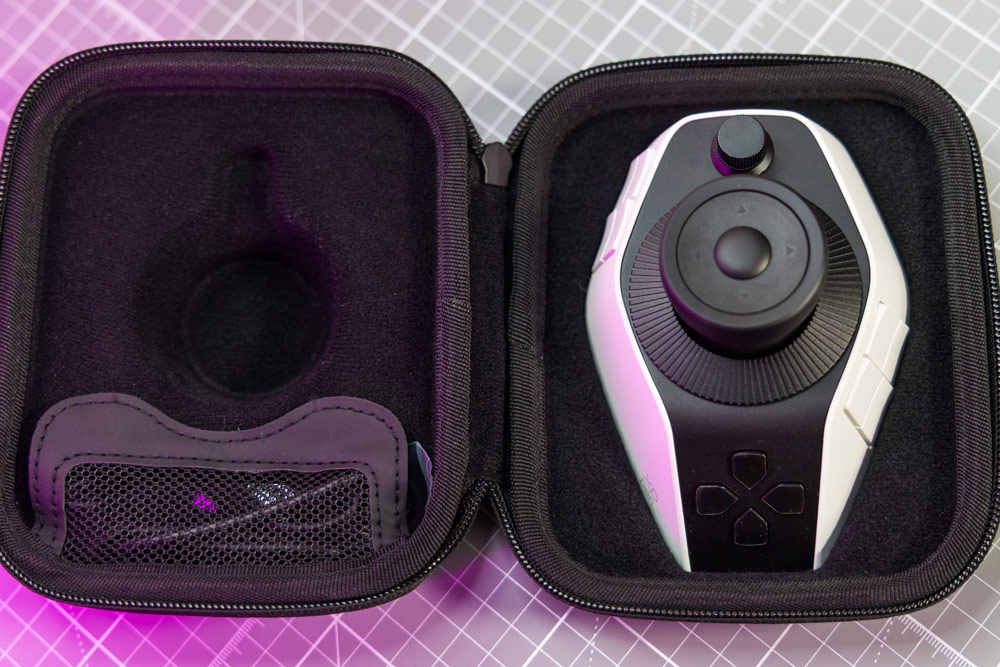
XPPen Pilot Pro Specifications
- Colour: white/black
- Weight: 251g
- Dimensions: 130.2 x 92.5 x 66.9mm
- Battery & Charging: Power Input: 5V-2A, Battery Capacity: 1900mAh/3.85V
- Operating Systems: Windows 10 (or later), MacOS 11.0 (or later)
- Connectivity: Wire: USB-Type C, Wireless: Dual-Channel Bluetooth 5.4 Low Energy
- Buttons: 19 (12 Shortcut Command Buttons, 3 Function Buttons, 4 touch buttons at joystick top), Rotating Components: 3 (Small Knob, Large Knob, Dial), Joystick: 1
- In the box: 1 × Pilot Pro Editing Console, 1 × USB C-A Cable, 1 × USB A-to-C Adapter, 1 × Bluetooth Receiver, 1 × Portable Storage Bag, 1 × Quick Guide, 1 × Warranty Card